

AirDrop makes sharing files between Apple devices incredibly simple, but what happens when it suddenly stops working? If you're asking yourself "why is my AirDrop not working," you're not alone. This frustrating issue affects millions of Apple users daily, whether they're trying to share photos from their iPhone 13, transfer documents between Mac computers, or send files to their iPad.
The good news is that most AirDrop problems have simple solutions. In this comprehensive guide, we'll walk you through every possible fix to get your AirDrop working again, no matter which Apple device you're using.
Why Is My AirDrop Not Working?
Before diving into solutions, it's important to understand what causes AirDrop failures. AirDrop uses both Wi-Fi and Bluetooth connections to discover nearby devices and transfer files. When either of these connections fails, or when device settings aren't configured properly, you'll experience the dreaded "No devices found" message.
The most common reasons why AirDrop stops working include:
Incorrect AirDrop visibility settings
Disabled Wi-Fi or Bluetooth connections
Device compatibility issues
Software bugs and glitches
Personal Hotspot interference
Firewall restrictions on Mac
Low battery or storage issues
Let's explore each solution in detail.
Solutions
1. Check Device Compatibility
Not all Apple devices support AirDrop. Before troubleshooting further, verify your devices meet these requirements:
iPhone Compatibility:
iPhone 5 or newer models
iOS 7 or later (iOS 17 recommended for best performance)
iPad Compatibility:
iPad 4th generation or later
iPad mini (all generations)
iPadOS 13 or later
Mac Compatibility:
Mac models from 2012 or later
OS X Yosemite (10.10) or newer
If you're wondering "why is my AirDrop not working on my iPhone" or any other device, start by checking these basic requirements.
2. Adjust AirDrop Visibility Settings
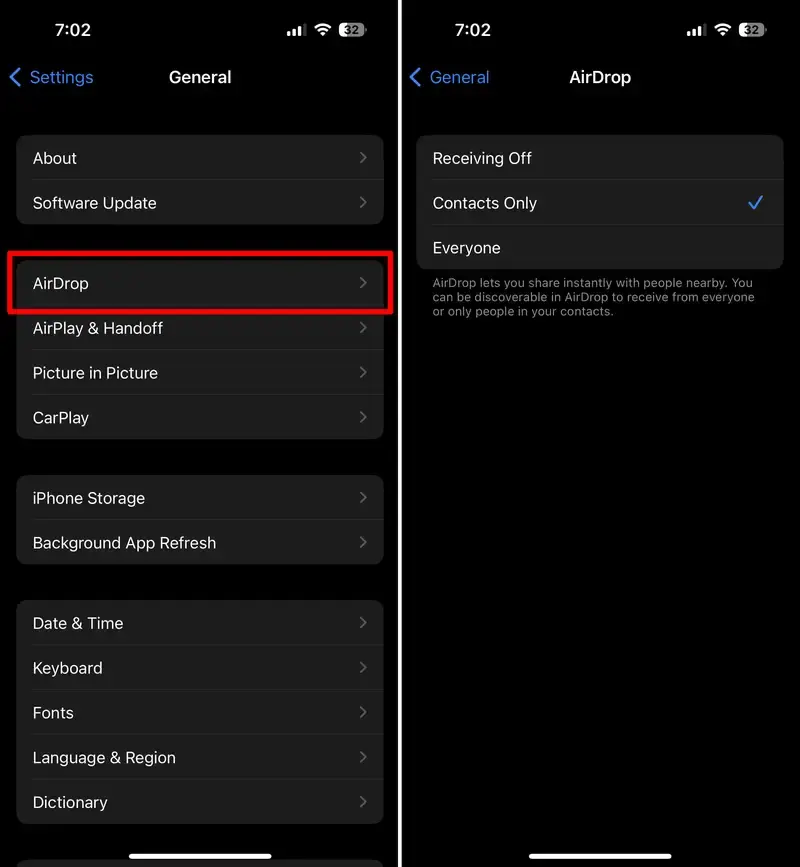
One of the most common reasons people ask "why is my AirDrop not working" is incorrect visibility settings. AirDrop offers three options:
Receiving Off: Blocks all AirDrop requests
Contacts Only: Only accepts files from saved contacts
Everyone for 10 Minutes: Temporarily accepts files from anyone nearby
For iPhone and iPad:
Open Settings
Tap General > AirDrop
Select "Everyone for 10 Minutes"
For Mac:
Open Finder
Click AirDrop in the sidebar
Click "Allow me to be discovered by: Everyone"
3. Enable Wi-Fi and Bluetooth
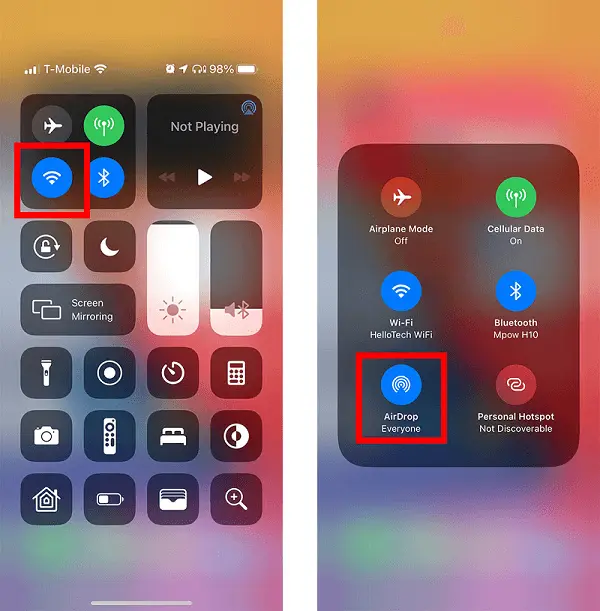
AirDrop requires both Wi-Fi and Bluetooth to function properly. Even if you're not connected to a Wi-Fi network, the Wi-Fi radio must be enabled.
On iPhone/iPad:
Open Control Center (swipe down from top-right)
Ensure Wi-Fi and Bluetooth icons are highlighted
If not, tap each icon to enable them
On Mac:
Click the Control Center icon in the menu bar
Toggle Wi-Fi and Bluetooth on
Alternatively, use System Settings > Wi-Fi/Bluetooth
If you're still asking "why is my AirDrop not working" after enabling these features, try toggling them off and on again to refresh the connections.
4. Turn Off Personal Hotspot
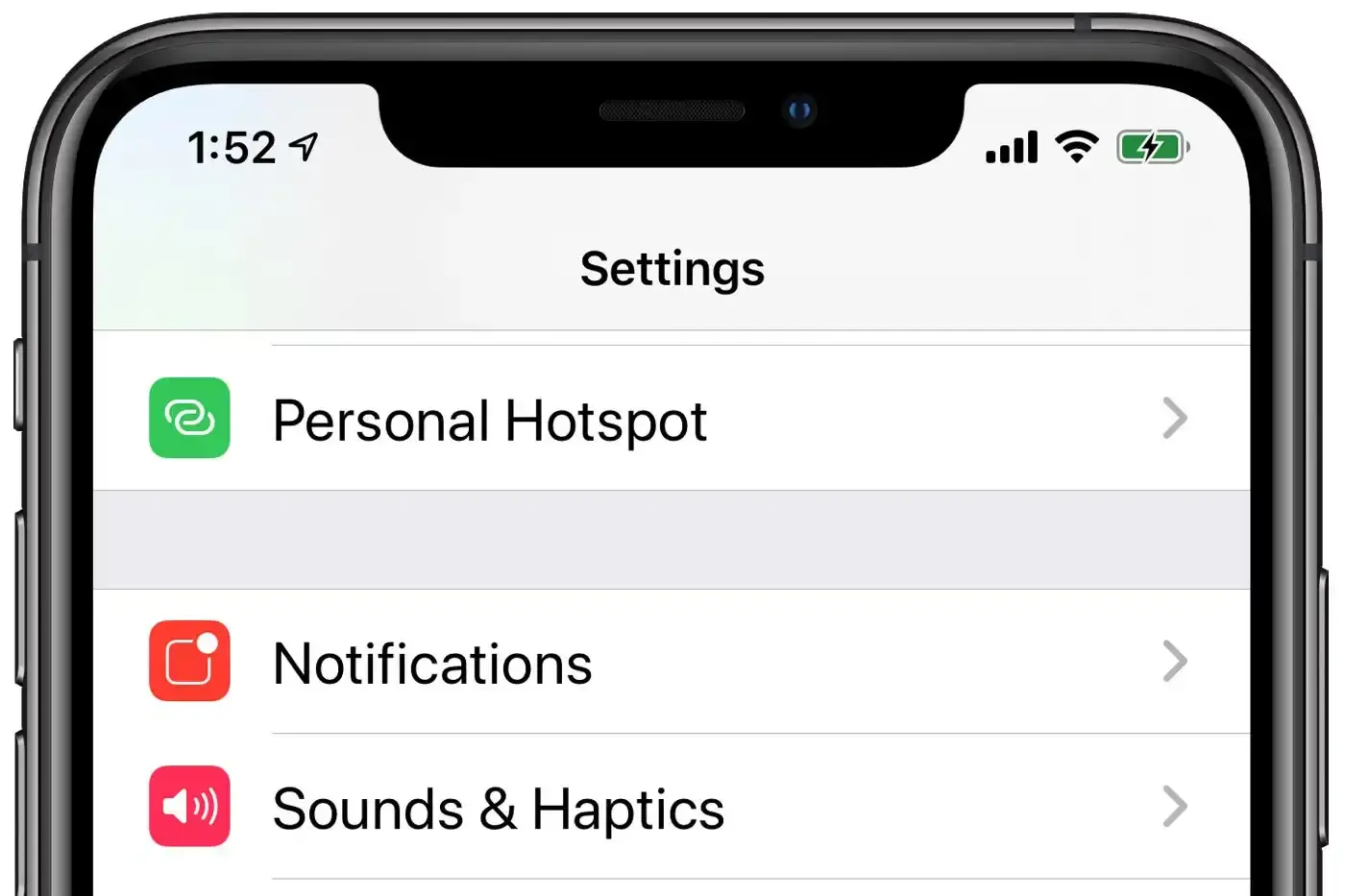
Personal Hotspot can interfere with AirDrop functionality. If you're sharing your internet connection, disable it temporarily:
Go to Settings > Personal Hotspot
Turn off "Allow Others to Join"
Try AirDrop again
This is particularly important if you're experiencing "AirDrop not working on iPhone 13" or newer models.
5. Unlock Your Device
AirDrop won't detect locked devices. If you're seeing "AirDrop not finding anyone," ensure:
The receiving device is powered on
The screen is unlocked
The device isn't in sleep mode
This simple step resolves many "AirDrop not showing up" issues.
6. Move Devices Closer Together
AirDrop works best within 30 feet (9 meters). If devices are too far apart or separated by walls, the connection may fail. Place devices side by side and try again.
7. Restart Your Devices
A simple restart can resolve temporary glitches causing AirDrop failures:
iPhone/iPad:
Press and hold the power button and volume button
Slide to power off
Wait 30 seconds, then turn back on
Mac:
Click Apple menu > Restart
Wait for the system to fully reboot
8. Update Your Software
Outdated software often causes compatibility issues. Check for updates:
iPhone/iPad:
Settings > General > Software Update
Mac:
Apple menu > System Settings > General > Software Update
If you're experiencing "AirDrop not working iOS 17" issues, updating to the latest version usually helps.
9. Check Mac Firewall Settings
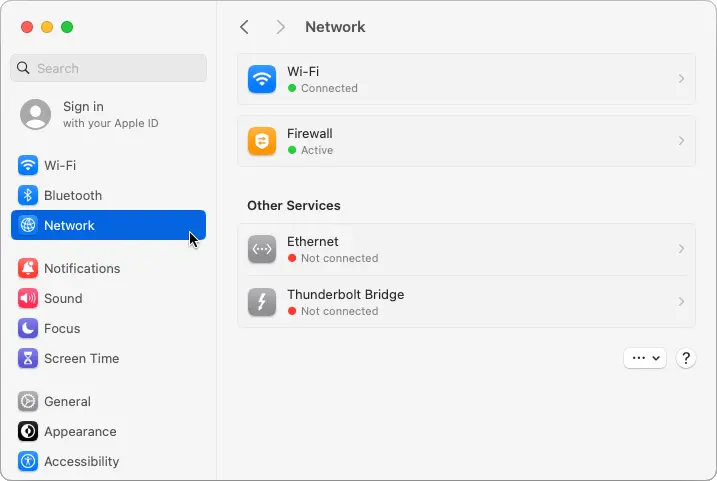
Mac firewalls can block AirDrop connections:
Open System Settings
Click Network > Firewall
Turn off "Block all incoming connections"
Enable "Automatically allow built-in software to receive incoming connections"
10. Reset Network Settings (Last Resort)
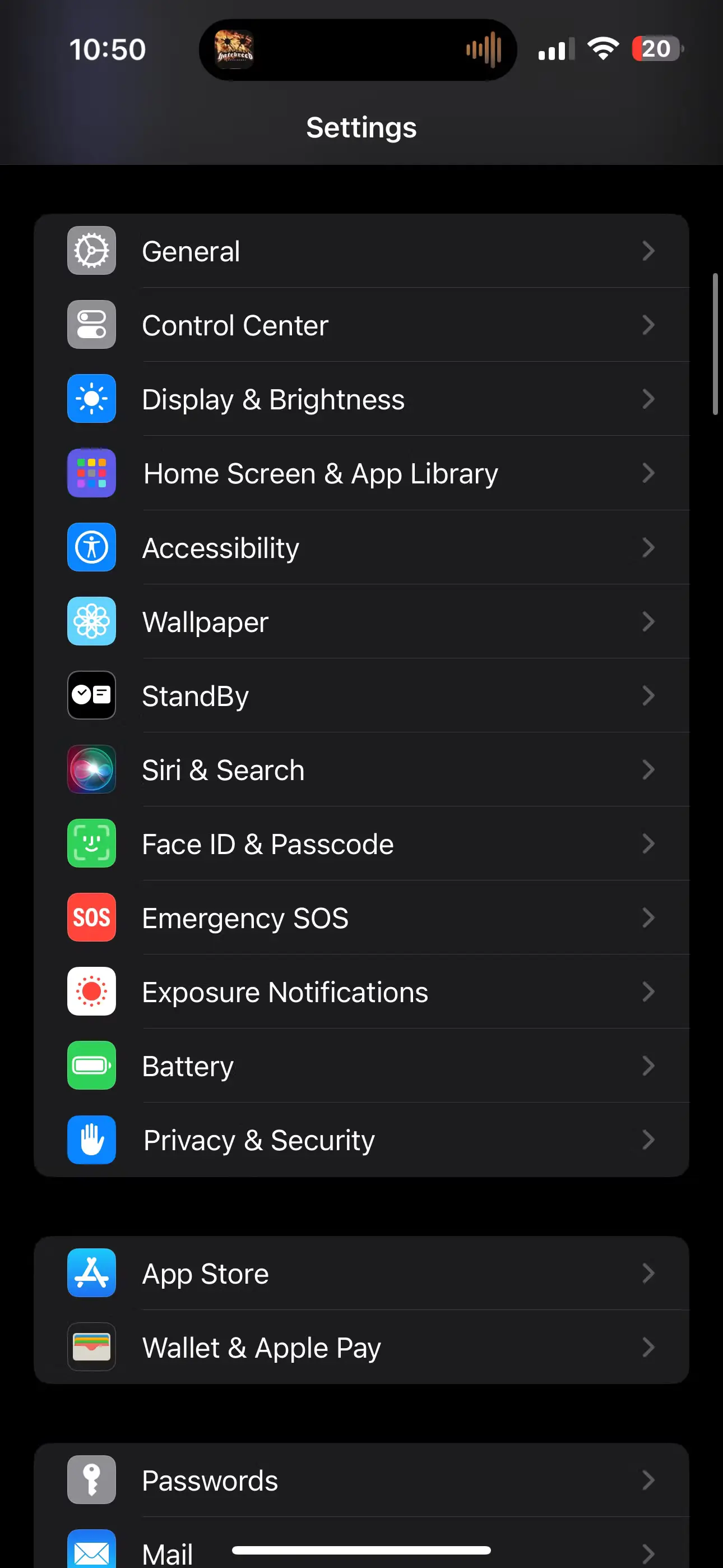
If nothing else works, reset network settings:
iPhone/iPad:
Settings > General > Transfer or Reset iPhone
Reset > Reset Network Settings
Enter your passcode
Confirm the reset
Note: This will remove all saved Wi-Fi passwords.
Platform-Specific Solutions
Why Is My AirDrop Not Working on My iPhone?min
iPhone-specific issues often relate to iOS settings or hardware problems:
Check Screen Time restrictions (Settings > Screen Time > Content & Privacy Restrictions > Allowed Apps & Features)
Ensure AirDrop isn't blocked by parental controls
Verify your Apple ID is properly configured in Contacts
Why Is My AirDrop Not Working on Mac?
Mac users frequently encounter firewall and network issues:
Check system firewall settings
Verify AirDrop appears in Finder sidebar
Reset SMC (System Management Controller) if problems persist
Why Is My AirDrop Not Working on iPad?
iPad issues are similar to iPhone problems but may also include:
iPadOS compatibility requirements
Multitasking interference
App-specific restrictions
Advanced Troubleshooting Tips
AirDrop Not Working Waiting
If AirDrop gets stuck on "Waiting," try these solutions:
Cancel the transfer and try again
Restart both devices
Check available storage space
Ensure both devices have adequate battery life
AirDrop Not Finding Anyone
When AirDrop can't detect nearby devices:
Verify all devices have AirDrop enabled
Check visibility settings on all devices
Ensure devices are within range
Toggle Wi-Fi and Bluetooth off/on
FAQs
Q: Why does AirDrop work sometimes but not others?
A: Intermittent AirDrop issues usually stem from network interference, low battery levels, or background app conflicts. Try restarting your devices and ensuring they're close together.
Q: Can I use AirDrop without Wi-Fi?
A: Yes, AirDrop creates its own wireless connection between devices. However, Wi-Fi must be enabled even if you're not connected to a network.
Q: Why can't I see the AirDrop option in my apps?
A: Not all apps support AirDrop. Look for the share button (square with arrow) and check if AirDrop appears in the sharing menu.
Q: Does AirDrop work with Android devices?
A: No, AirDrop only works between Apple devices. Android users can use Quick Share or similar features instead.
Q: Why does AirDrop fail with large files?
A: Large files may timeout or fail due to connection instability. Try breaking large transfers into smaller chunks or use cloud storage alternatives.
Q: Can Screen Time restrictions affect AirDrop?
A: Yes, Screen Time settings can disable AirDrop. Check Content & Privacy Restrictions > Allowed Apps & Features to ensure AirDrop is enabled.
Q: Why does my Mac show up as "Unknown" in AirDrop?
A: This usually indicates contact information isn't properly configured. Ensure your Apple ID email is in your Mac's contact card.
Q: Does Low Power Mode affect AirDrop?
A: Yes, Low Power Mode can limit AirDrop functionality. Disable it temporarily for file transfers.
Conclusion
Dealing with AirDrop problems can be frustrating, but most issues have straightforward solutions. Whether you're wondering "why is my AirDrop not working on my iPhone," experiencing Mac connectivity problems, or facing iPad transfer failures, the solutions in this guide should help you get back to seamless file sharing.
Remember to start with the basics: check device compatibility, verify your settings, and ensure Wi-Fi and Bluetooth are enabled. Most AirDrop problems resolve with these simple steps. For persistent issues, don't hesitate to restart your devices or update your software.
The next time someone asks you "why is my AirDrop not working," you'll have the knowledge to help them troubleshoot and fix the problem quickly. AirDrop remains one of Apple's most useful features when it works properly, and with these solutions, you can ensure it works reliably for all your file-sharing needs.
Keep this guide handy for future reference, and remember that technology issues are often temporary. With patience and the right troubleshooting steps, you'll have your AirDrop working perfectly again in no time.